How to take a screenshot on Windows
Press Win+Shift+S and pick the area. On Windows 11 the shot is saved by itself in the Screenshots folder; on Windows 10 it opens in the Snipping Tool and you save it yourself. For a one-off screenshot you need nothing else. If you capture often, winshotx shows the selection already painted in 114 ms, covers personal data with one click and scrolls down a long page by itself.
What Windows already includes
Three keys, and each one does something different:
- Win+Shift+S. Opens the Snipping Tool to pick a rectangle, a window, the full screen or a freeform shape. On Windows 11 the shot is saved by itself in Pictures › Screenshots; on Windows 10 you save it yourself.
- Win+Print Screen. Saves the whole screen in that same folder.
- Print Screen. Depending on how your Windows is set up, it copies the whole screen to the clipboard or opens the Snipping Tool.
How to capture with winshotx
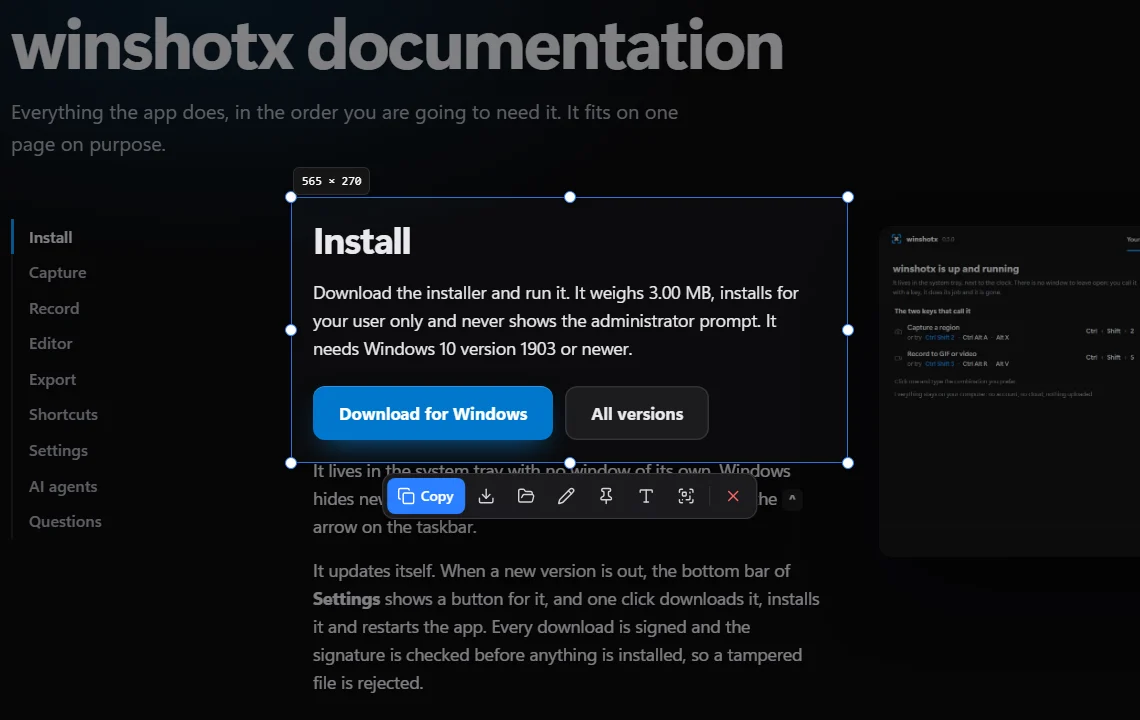
- Install winshotx. It weighs 3.03 MB, installs for your user only and never shows the administrator prompt.
- Press Ctrl+Shift+2 and drag over what you want. The screen freezes while you choose, and one click on a window takes it whole.
- Choose what to do with it. On the bar next to the selection, Enter copies, Ctrl+S saves, E opens the editor, A pins it on top of everything and T copies its text.
114 ms from the shortcut to the selection, already painted, with three screens; the Snipping Tool, 920 ms. Measured on the same Windows 11 machine, three runs each, both starting from cold. The clock stops when the selection is already on screen.
What winshotx adds
Row by row, including where the Windows one wins:
| What | winshotx | Snipping Tool | ShareX |
|---|---|---|---|
| Capture an area | Snapping to windows | Yes | Yes |
| Arrows, text and numbered steps | Eleven marks | No text or steps | Yes |
| Pin a shot on top of everything | Yes | No | Yes |
| Cover personal data in an image, by itself | Yes, with one click | Emails and phone numbers | No, by hand |
| A long page, scrolling by itself | Yes | No | Yes |
| Read the text in the image | Yes, in a video too | Yes | Yes |
| Comes with Windows | No | Yes | No |
Using something else? See winshotx against the Snipping Tool, ShareX, Greenshot or Lightshot.
Questions
Where are the screenshots saved?
On Windows 11, by themselves in Pictures › Screenshots. On Windows 10, you save the Win+Shift+S one wherever you want. With winshotx, in the folder you choose in Settings → The app; by default, Pictures\winshotx.
Can I capture with the Print Screen key?
Yes. In Settings → Windows keys a switch takes that key from the Snipping Tool and gives it to winshotx, and the app asks the first time you open it.
How do I capture a whole long page?
Press Ctrl+Shift+2, then S and pick the area: it scrolls the page down by itself and stitches it into one image.
Does it upload my screenshots anywhere?
No. No account, no telemetry, no uploads. The only network call is checking GitHub for a new version, and the Microsoft Store version does not even do that.